Track your yacht using Signal K on Victron Cerbo
What is Signal K?
Signal K is a free, open marine data standard and server that collects the data already flowing around your yacht — GPS position, speed, depth, wind, battery state and much more — and makes it available to apps and services. The Signal K server is lightweight and runs on almost anything: a Raspberry Pi, any computer, or — our preferred solution — a Victron Cerbo GX. If you already have a Cerbo on board managing your batteries and charging, it can double as your tracking computer with no extra hardware.
Quartermaster tracking with Signal K
The Quartermaster Signal K plugin reads your yacht's GPS position from Signal K and sends it to Quartermaster at a regular interval (every 2 minutes by default). Unlike satellite tracking with Iridium Go, this works over any internet connection your yacht has — marina Wi‑Fi, a cellular hotspot or Starlink — so it's a great fit for coastal and connected cruising. To link the position reports to your yacht, the plugin uses a unique tracking key that you copy from Quartermaster.
Tracking requires an active paid Quartermaster subscription.
What you'll need
- A yacht created in your Quartermaster account.
- A Signal K server with a GPS position source. On a Victron Cerbo this can be a Victron GPS (USB), an NMEA 2000 GPS, or AIS that reports position.
- An internet connection for the Signal K server.
- An active paid Quartermaster subscription.
Step 1 — Get Signal K running
On a Victron Cerbo GX (recommended)
- Make sure your Cerbo is running Venus OS Large. The standard Venus OS does not include Signal K — the “Large” image does. You can switch to it under Settings → Firmware → Online updates by choosing the Large image, or flash it to the SD/eMMC.
- On the Cerbo, go to Settings → Venus OS Large features and set Signal K to Enabled.
- Make sure your Cerbo has a GPS source connected and that it shows a position. You can confirm this on the Cerbo's display or in VRM.
-
Open the Signal K admin panel in a browser at
http://<your-cerbo-ip>:3000 (for example
http://192.168.1.50:3000). You'll find the Cerbo's IP address under Settings → Ethernet or Settings → Wi-Fi.
On a Raspberry Pi or any computer
Install Signal K following the official Signal K server instructions (the Raspberry Pi image comes with it ready to go), make sure it has a GPS source, then open the admin panel at http://<your-server-ip>:3000.
Step 2 — Get your tracking key from Quartermaster
- Open a browser and go to https://quartermaster.me, then log in.
- Select your yacht and go to the Tracking tab.
- Find the note “Track your yacht using Signal K on Victron Cerbo” and click the copy icon next to it to copy your yacht's tracking key to the clipboard. Keep this key private — anyone with it can post positions to your yacht.
Step 3 — Install and configure the plugin in Signal K
- In the Signal K admin panel, go to Appstore → Available and search for quartermaster.
- Install the quartermaster-signalk-plugin, then restart Signal K when prompted.
- Go to Server → Plugin Config and open Quartermaster Tracker (Beta).
- Paste your tracking key into the Yacht tracking key field.
- Set the Interval between GPS updates in seconds if you like. The default is 120 seconds (2 minutes), which is also the minimum.
- Make sure the plugin is enabled, then click Submit to save.
Checking that it works
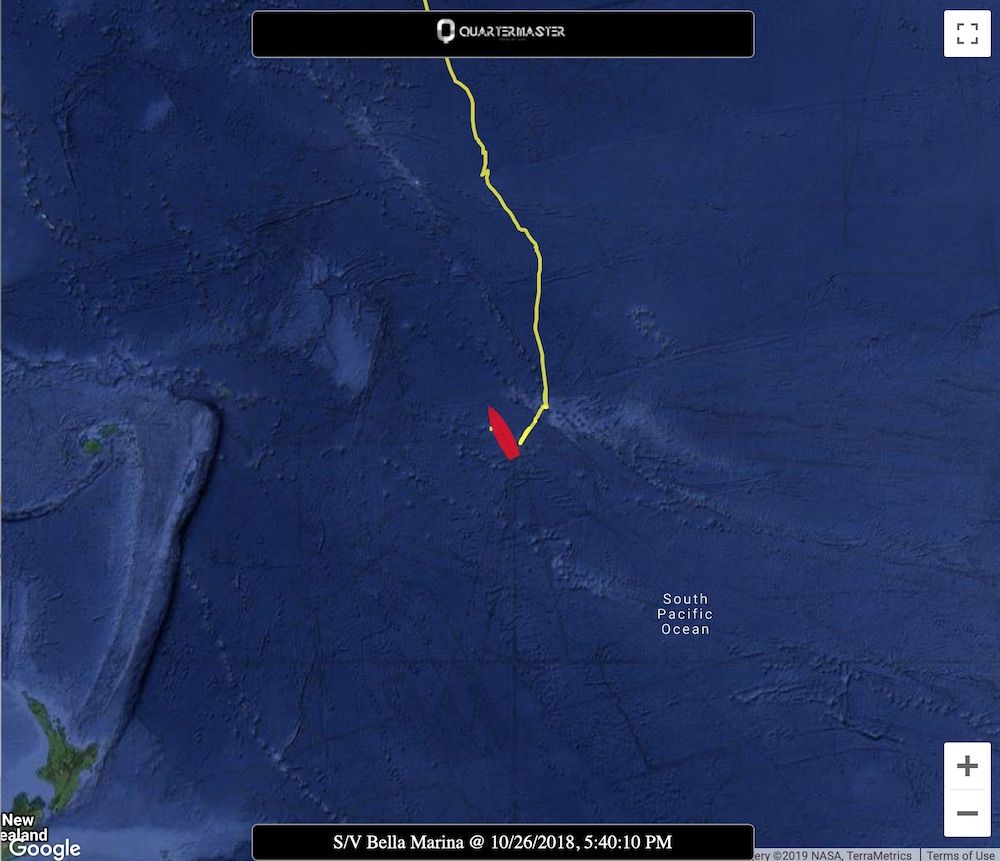
Once the plugin is enabled and your yacht has a GPS fix, it will start sending your position to Quartermaster at the interval you set. Wait a few minutes, then open the Tracking tab in Quartermaster and refresh — your yacht's latest position should appear on the map. You can also view the map in full screen, embed it on your website, or download a GPX file of all your tracking points to open in Google Earth or any other charting program.
If nothing shows up, double‑check that the Signal K server has internet access, that it has a
valid GPS position (visible in the Signal K Data Browser under
navigation.position), and that the tracking key was pasted correctly with no extra
spaces.